 Contact





1. Create a Free BigBuy Account
To place large orders, you first need a free BigBuy account. You can create your account here: Create BigBuy Account
2. Check Distributor Prices and Discounts
Once registered, you can:
- Browse the full product catalog here: Catalog
- On each product page, you can see the wholesale prices directly:
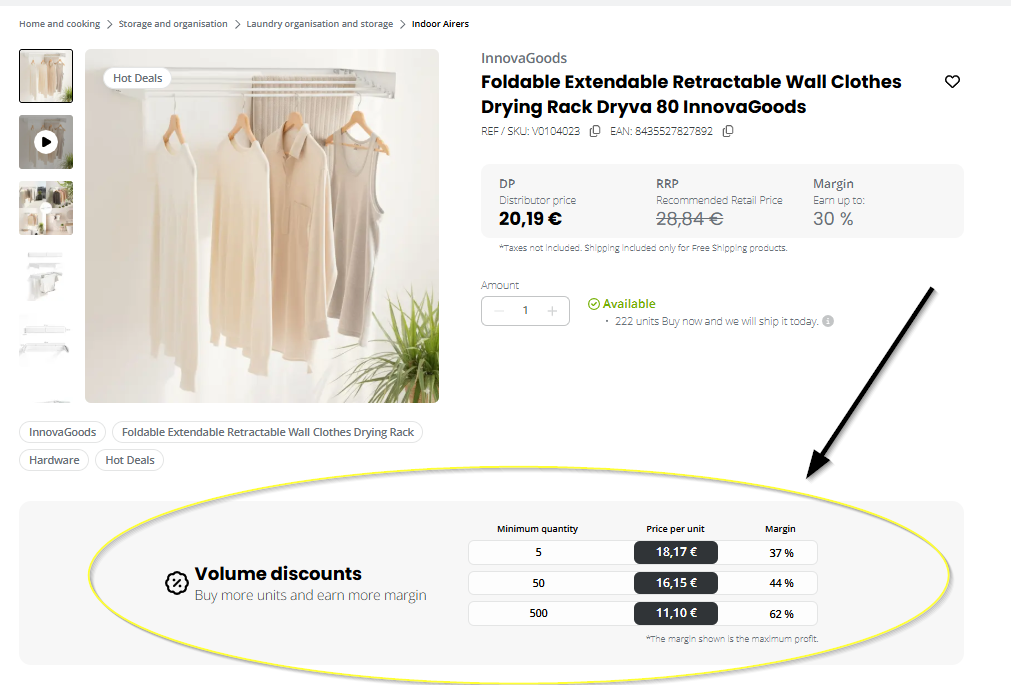
- DP (Distributor Price): The wholesale price available to all customers, even for single-unit orders.
- RRP (Recommended Retail Price): The sale price suggested by BigBuy, although each seller is free to set their own selling price.
- Check quantity-based pricing for bulk orders
📹 Video tutorial: How to view product prices and details.
📌 You can browse the catalog by category or search directly using the product description or EAN code.
💡 Keep in mind that shipping costs and VAT (where applicable) will be added to the final price.
To purchase products at these exclusive wholesale prices, you will need to activate one of our Wholesale Packs, which will allow you to take full advantage of all the benefits of wholesale purchasing.
If you’re interested and would like to start your collaboration with BigBuy, then I recommend you our B2B Pack (89€ one-off payment).
3. Selecting Products for Large Orders
To efficiently manage large orders:
- Browse the catalog and select the products you want
- Adjust the desired quantities on each product page
- The system will automatically display volume discounts according to the quantities selected
- If the MOQ shows a discount for a minimum quantity, any quantity above that minimum will receive the same discount indicated. No additional discount is applied unless explicitly stated.
4. Requesting a Quote for Bulk Orders
For bulk orders, quantity-based discounts are always displayed directly on the product page.
💡 When to submit a ticket:
You only need to open a ticket if:
- The product page does not show any discounts, or
- You want to place an order for multiple products in large quantities where the requested quantity exceeds the maximum range indicated for the discounts.
How to submit a ticket for this purpose:
- Ensure you have a BigBuy account
- Submit a ticket to our Sales Team via the Contact Area
Recommended path:
Contact Area > Customer Service > Product Information > Special Order > Large Quantity Orders.
This ensures our sales experts can provide guidance on how to view discounts or confirm applicable pricing for bulk quantities.
5. What to Do if a Product is Out of Stock
If a product is not currently available, BigBuy provides a tool to track upcoming stock entries:
- Go to the product page and click the heart-shaped icon
- The system will allow you to follow the new entries of that product directly in your Control Panel>Wishlist

💡 Important notes:
- If no date is shown, it means we do not know the exact arrival date of new stock, but we still expect it.
- We recommend checking our website regularly, as there may be other similar products that could be of interest.
6. Shipping and Payment Options for Bulk Orders
Transportation and Shipping
- The best way to check available shipping methods, delivery times, and costs is directly on the product page.
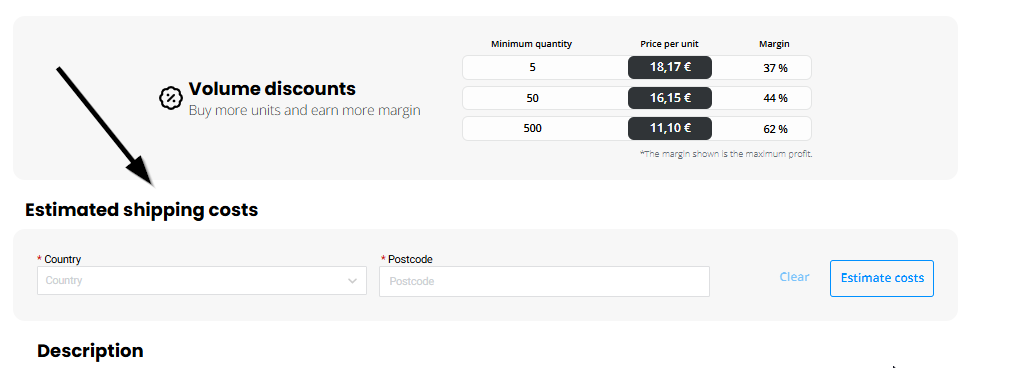
- You can also make an estimation by adding the products to the shopping cart and introducing the postal code of destination.
📦Here you will find a small tutorial to check our transport fees
- If you are logged in, you can also download a CSV file with detailed shipping information by country, carrier, and weight.
📹 Video tutorial: CSV transport
Payment Methods
BigBuy offers multiple secure payment options for your convenience:
- PayPal
- Moneybox
- Bank Card
- Bank Wire Transfer
This ensures that you can manage large orders efficiently, with full control over costs and secure payments.
Order via CSV
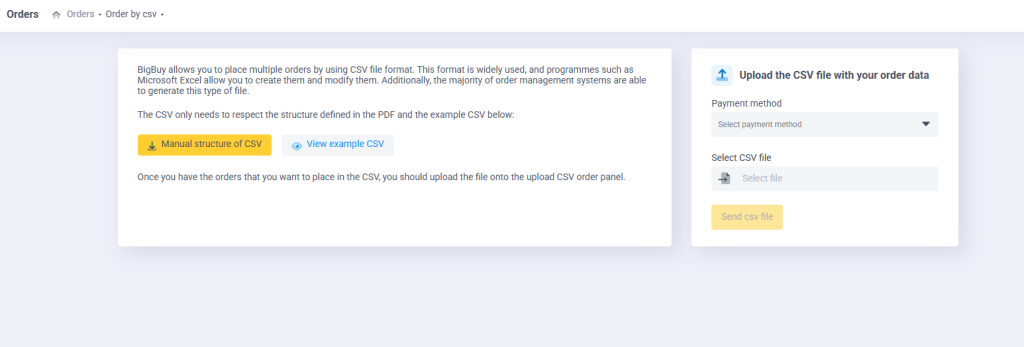
BigBuy allows you to place multiple orders by using CSV file format. This format is widely used, and programmes such as Microsoft Excel allow you to create them and modify them. Additionally, the majority of order management systems are able to generate this type of file.
The CSV only needs to respect the structure defined in the PDF and the example CSV below: you can find at this link: Orders via CSV
Once you have the orders that you want to place in the CSV, you should upload the file onto the upload CSV order panel.