 Contact





In the Control Panel of your account, BigBuy provides you with the Wallet, which you can recharge to have credit for your orders. It’s a balance that you can recharge via bank transfer, credit card, or also through dropshipping refunds.
Below, we’ll explain how to use it.
1. Deposit via traditional bank transfer
1a. Create the bank transfer deposit request
1. Go to your BigBuy Control Panel.
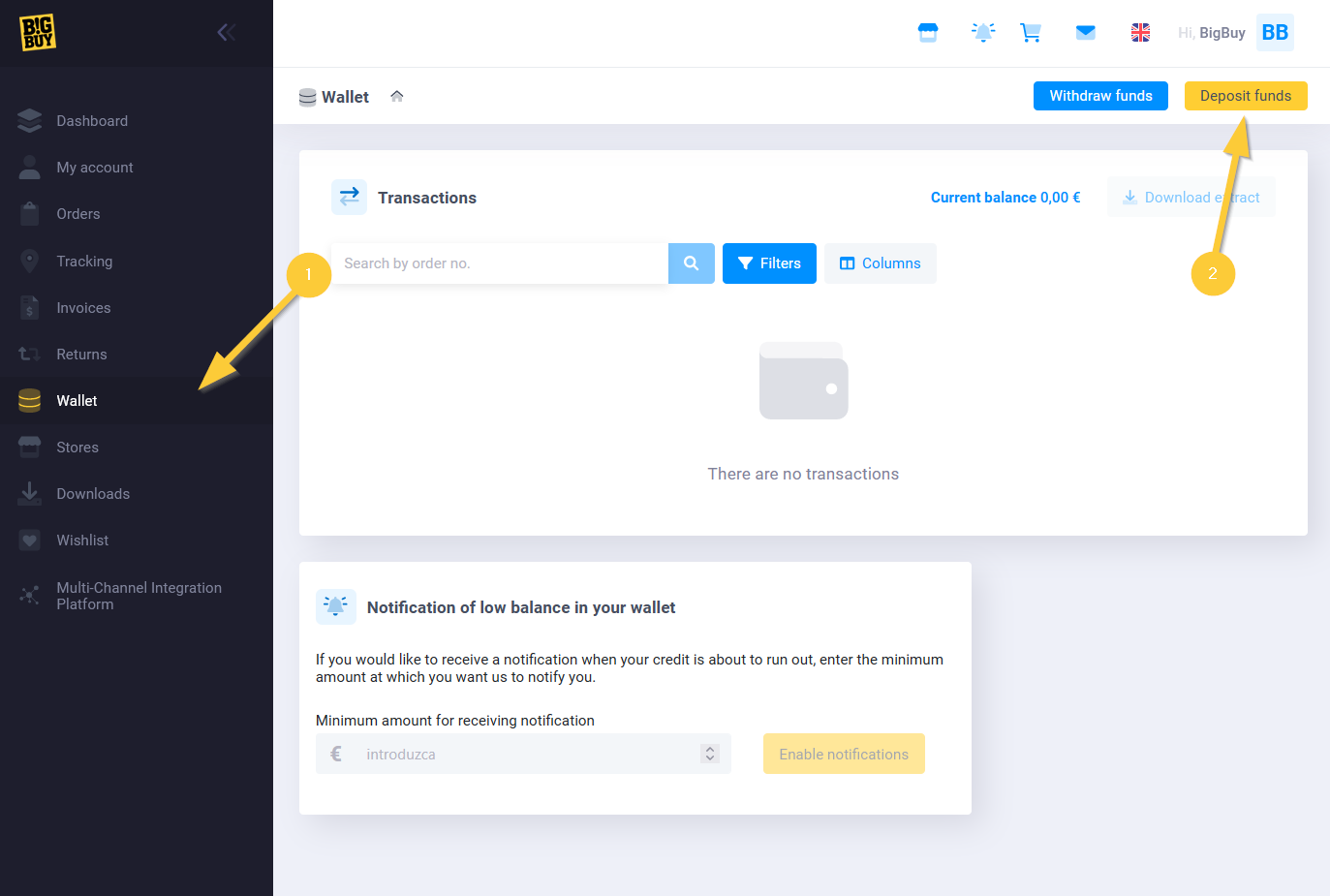
2. Select the Wallet option (1) > Add funds (2) > Bank transfer.
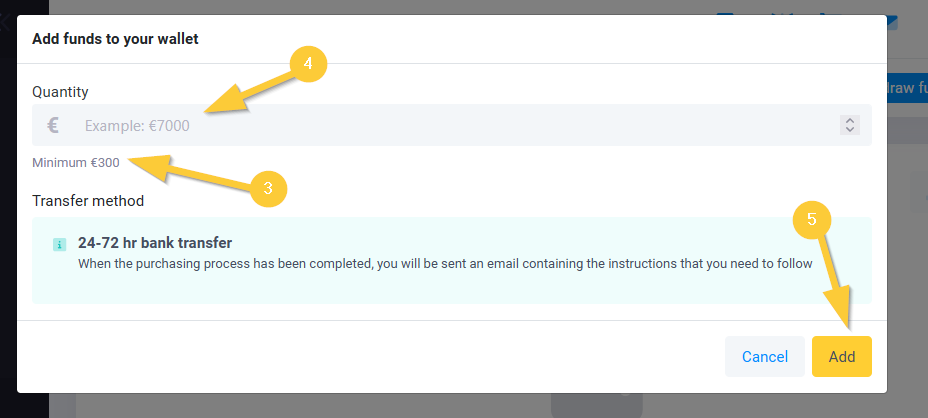
3. To select the amount to deposit, you must enter it in the corresponding field (4). You must deposit at least €300, as indicated in the image (3).
4. Lastly, click on the Add button (5).
Once done, you’ll have made the recharge request on your BigBuy account’s wallet.
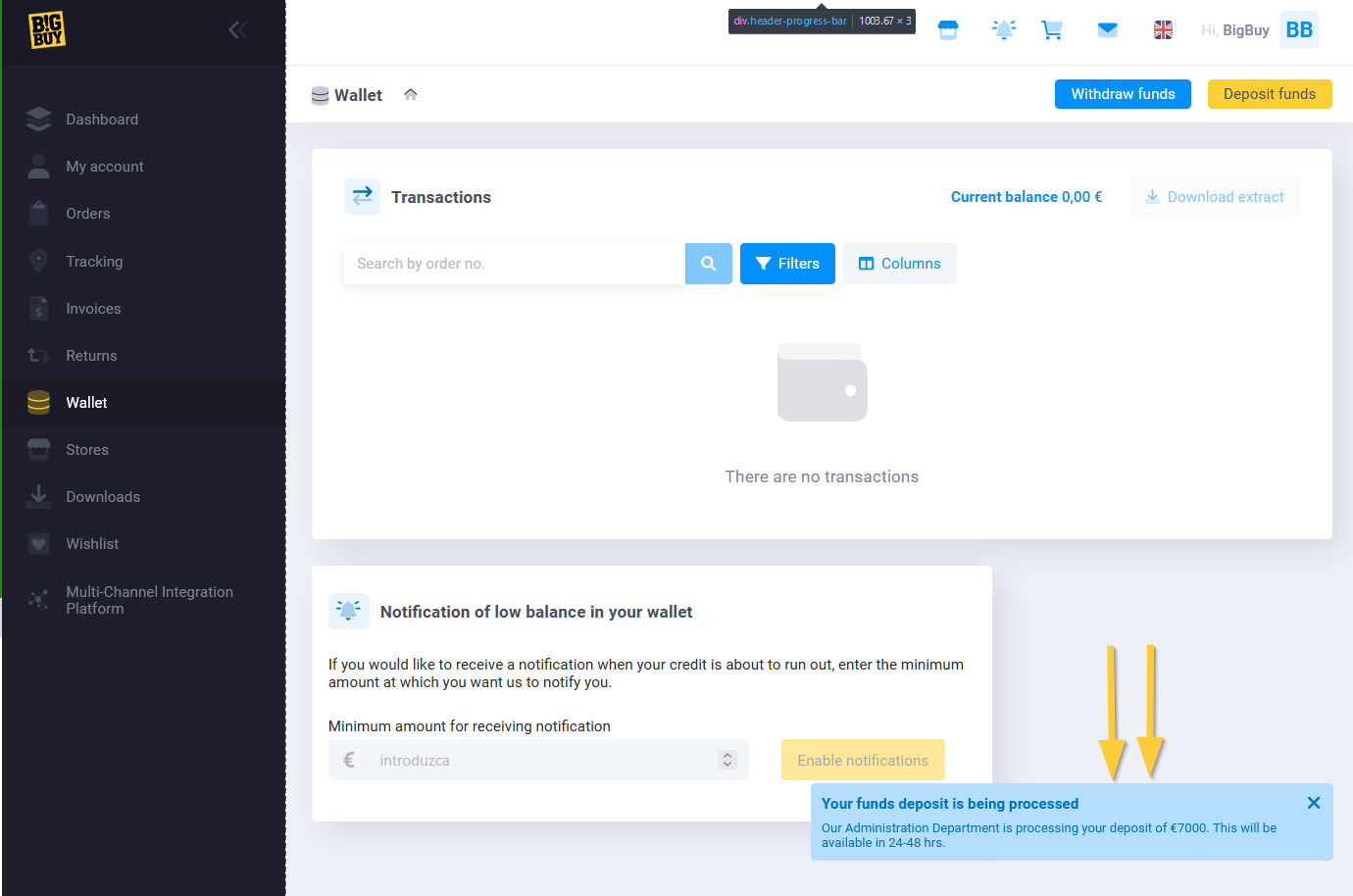
After doing this, you’ll receive an email with the information to make the bank transfer.
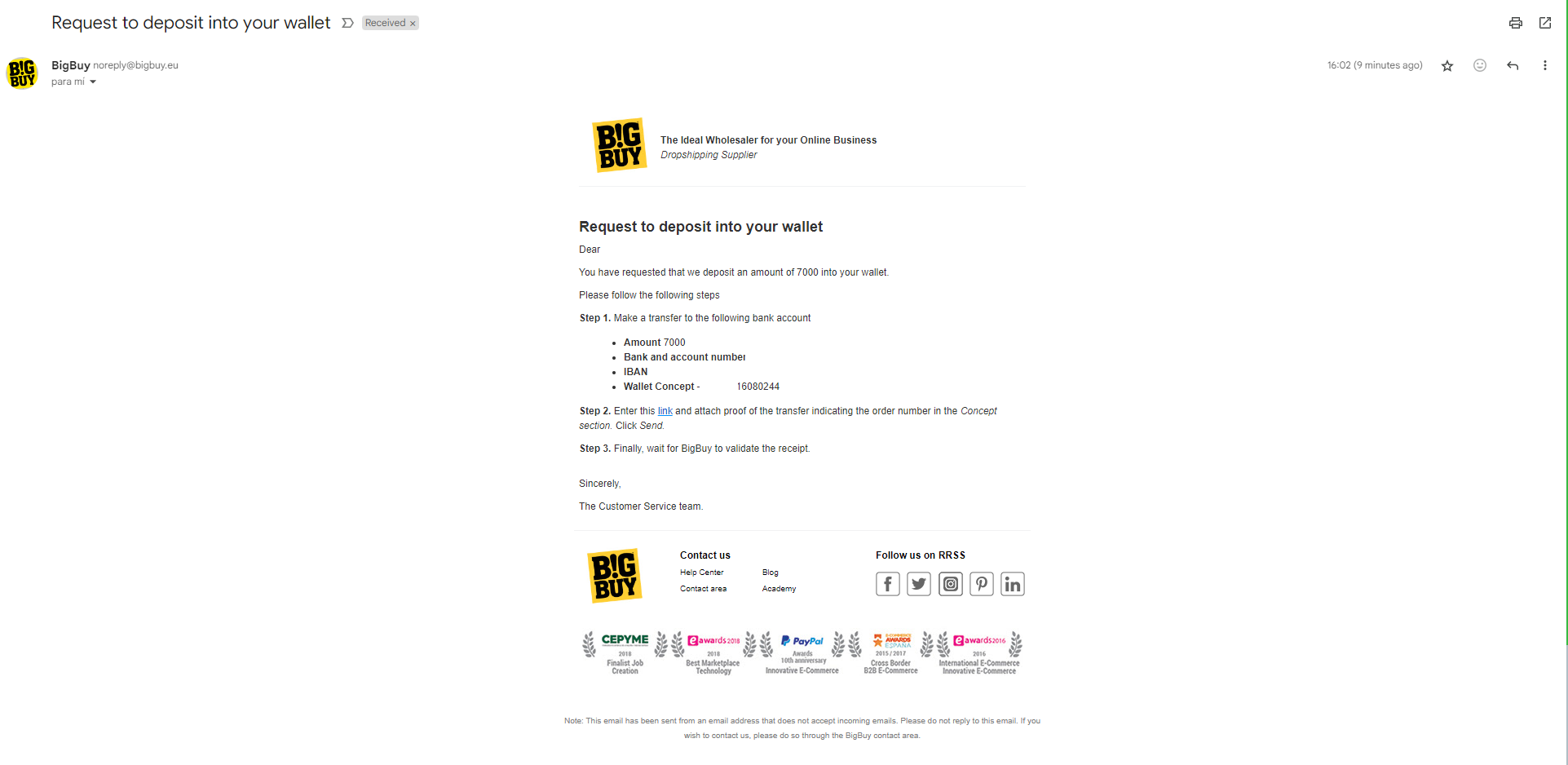
Remember that it is very important that your transfer’s concept is the recharge number that appears in the email that we send you.
This recharge method doesn’t incur any additional fees.
1b. Attach the transfer receipt
Once the transfer is made, you need to attach the receipt by following these steps:
1. Go to Orders (1) and and open the corresponding order:

2. Click on Attach (2) and select Attach Receipt (3).
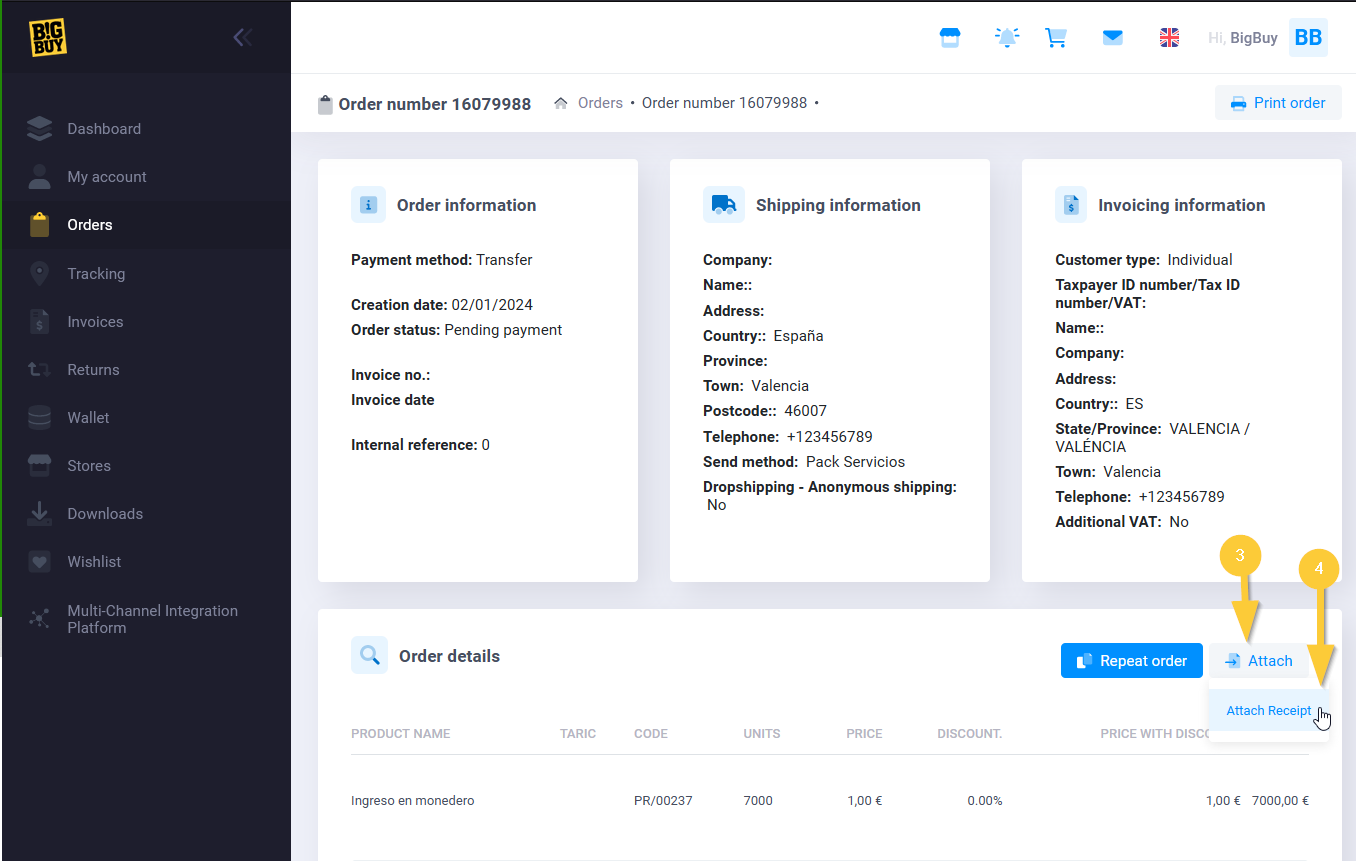
3. Select the file from your device (5) and click Send (6).

This way, you’ll complete the topping up process and you’ll just have to wait for your balance to be approved by our administrative department.
It’s not necessary to open a ticket as at BigBuy, we automatically review all recharges during the day.
If the receipt is not attached or is not valid, the process could take more than 24/48 hours.
For a receipt to be valid, it must be an official document issued by the bank with its name and logo. It must also contain the following information:
- Order number
- Execution date in DD/MM/YYYY format. At the latest for the next day
- Our complete bank account number: ES35 0049 4606 7926 1627 6072
- Exact amount in EUROS. It is not possible to pay by multiple transfers or by several payment methods.
This process applies exclusively to countries that do not offer the “Other payment methods” option.
2. Deposit via Other payment methods
1. Go to your BigBuy Control Panel.
2. Select the Wallet option (1) > Add funds (2) > Other payment methods.
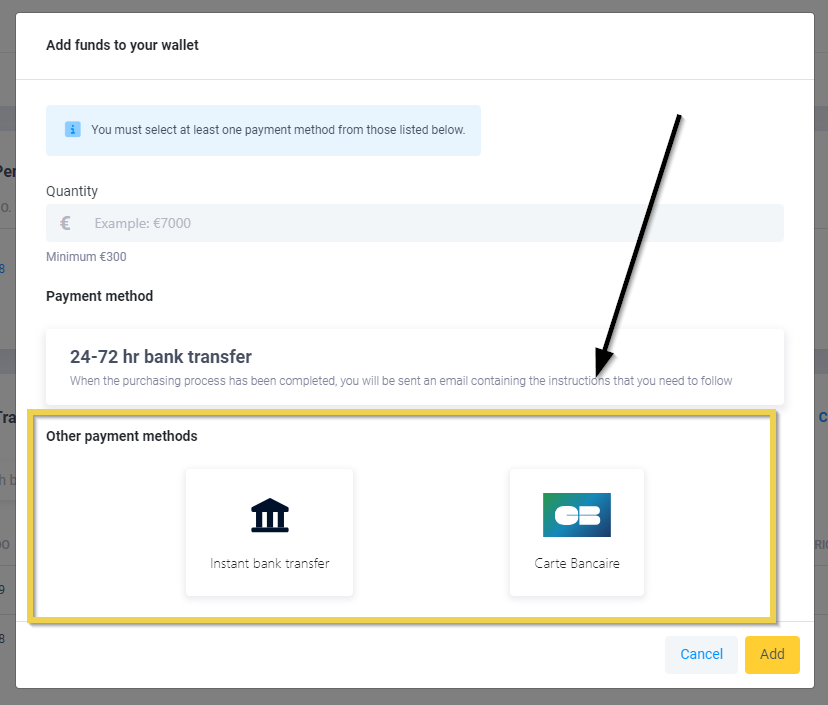
3.Fill in the required fields, according to your preferred payment method.
Depending on the country, you will have different options to choose between Instant Bank Transfer or Credit Cards.
If you do not yet have options under Other payment methods, we would like to inform you that we are constantly working to offer you alternatives in the future.
If you choose to top up using these options, the payment gateway will charge a commission based on your banking system.
This commission will be applied once the amount has been entered and the payment method selected.
3. Withdraw funds from the Wallet
To withdraw funds from your wallet, go to the Control Panel, to the Wallet section (1), and click on Withdraw funds (2).
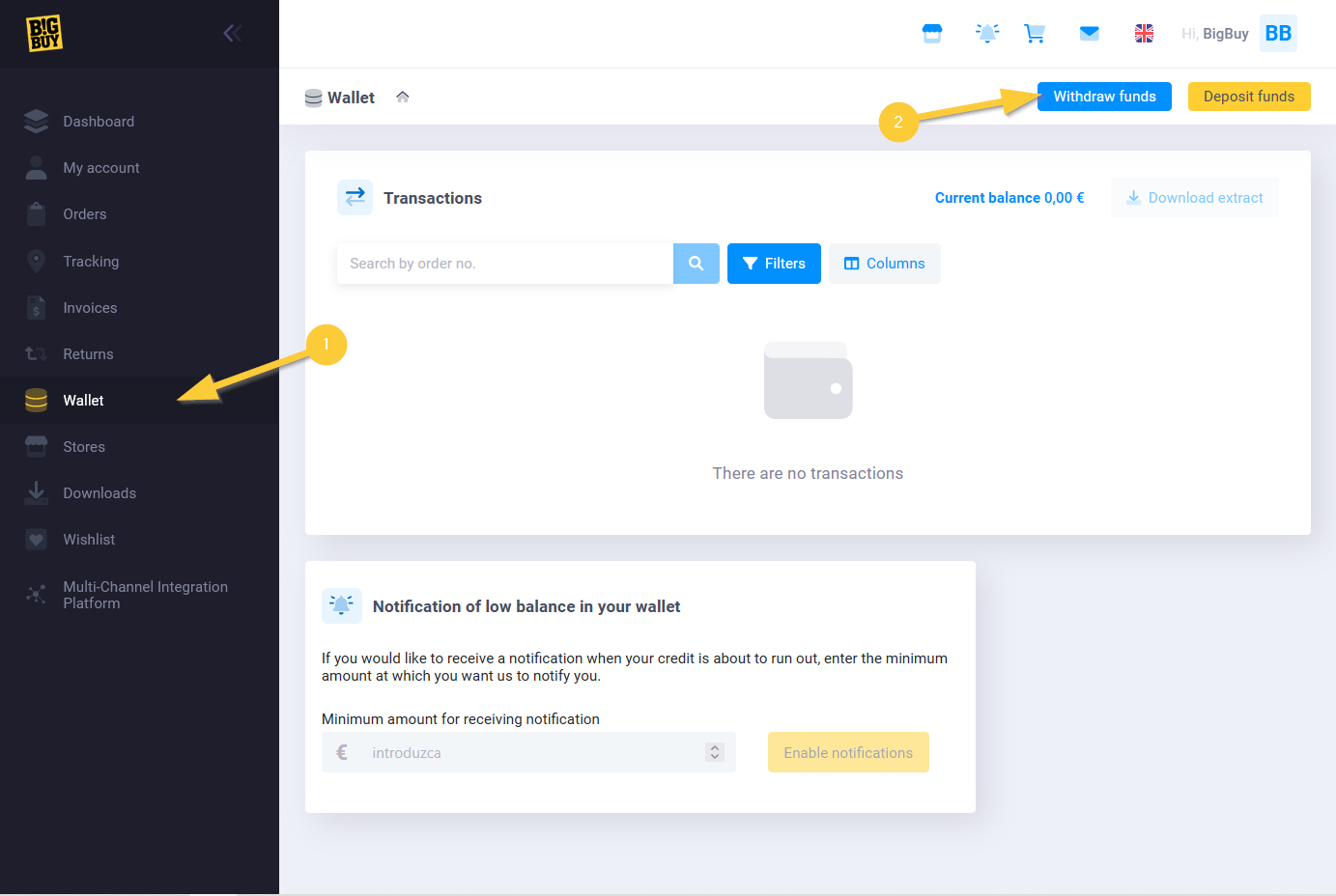
Fill in the following information in the pop-up:
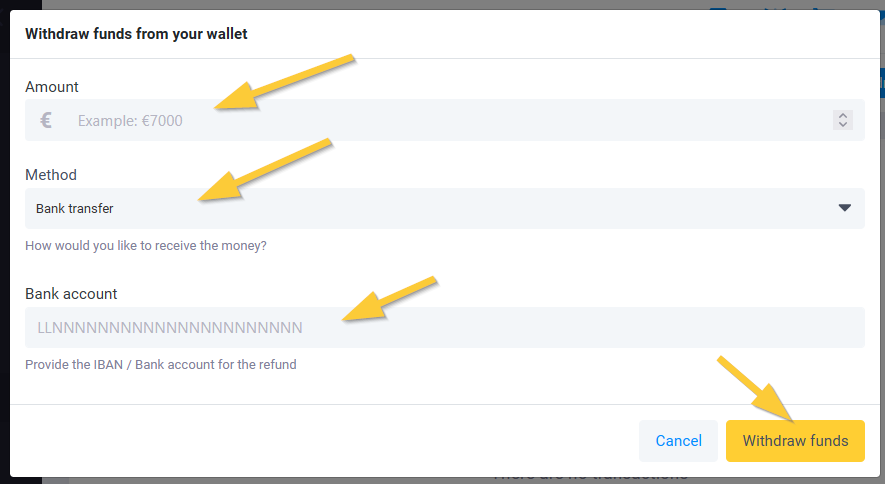
- The amount you want to withdraw (Minimum 50€)
- Method of the withdrawal (Bank transfer or Paypal)
- The account where you will receive the funds
Requests will be processed only on Tuesdays of each week.
3a. Important considerations for effective withdrawal management
- We remind you that withdrawals to PayPal can only be made if the credit in your wallet comes from a refund processed through that same payment method.
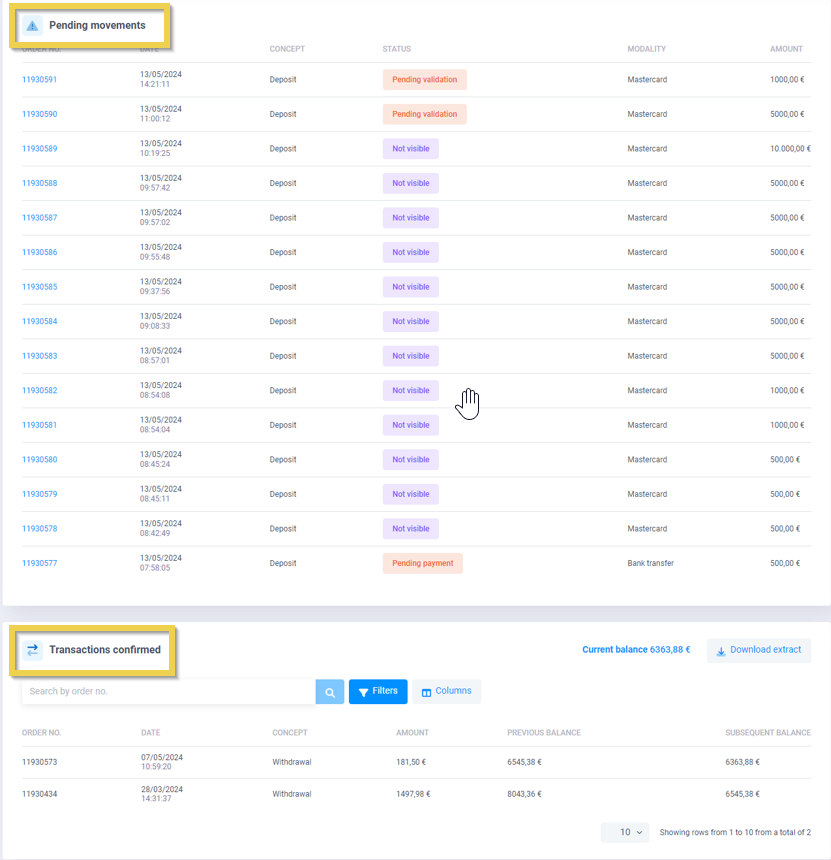
- You can check the movements of your Wallet in your Control Panel. Once the withdrawal has been processed, it will move from Pending Movements to Transactions Confirmed:
- To speed up the process, make sure that the account selected for withdrawal by bank transfer is the same one you used to recharge your wallet.
- Our Administration Department reserves the right to request the certificate of ownership or other equivalent documents, depending on the transactions to be carried out as requested by the customer.
4. Configure the Notification of low balance in your wallet
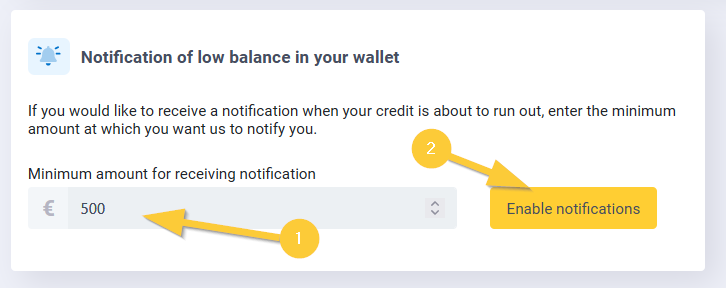
This feature allows you to receive a notification when your credit is about to run out. To activate it, simply indicate the minimum amount (1) at which you want to be notified and click on Enable Notifications (2).