
 Contact





Everything about Decathlon: onboarding process in the marketplace and synchronization via Multi-Channel Integration Platform
In this article, we show you how the platform works and explain step by step how to work with Decathlon. Here you will find everything you need to know about product integration, API connections, information management, and orders… and much more. Let’s get started.
1. Account registration and validation
Before starting the integration with Decathlon, make sure you have a seller account. You can do this from the Decathlon page by adding BigBuy in the comments. Additionally, you must have an active marketplaces pack and have purchased our Decathlon connector. You can do it here.
2. Access to Decathlon seller account
Once you have created your Decathlon account, you can access it here. After logging in, we recommend familiarizing yourself with store management using Decathlon’s guide, available in your seller space.
3. Catalog synchronization with Multi-Channel Integration Platform
To synchronize your Decathlon account, go to your BigBuy account dashboard and click on Multi-Channel > Emarketplaces. Then access Decathlon settings and fill in the API data.

To obtain the API, go to your Decathlon seller account and click on Personal Settings (top right, click the email icon and then personal settings). Then click on the API Key tab. Copy it and paste it into the Multi-Channel Integration Platform.
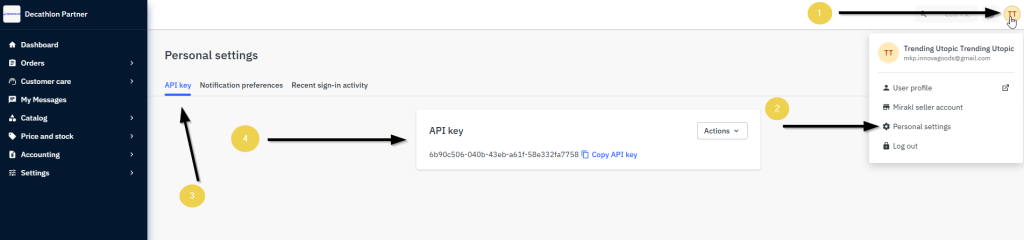
Once the API is entered, you can start publishing your products. To do so, you must synchronize the products you want to publish on the Decathlon marketplace.

4. Catalog selection
During the synchronization phase, select the products you want to publish:

If you need more information on how to select products, you can find it in this tutorial from our Help Center. We also recommend carefully reading the guide available on Decathlon here.
5. Shipping and carriers
After synchronizing your catalog products, it’s time to define carriers and shipping costs.
In the Multi-Channel Integration Platform panel, you will find the carriers used by BigBuy. We recommend activating as many carriers as possible to ensure proper order delivery. However, you can deactivate those you do not wish to work with.
Additionally, in this section, you can set a preparation time. The default time is 3 days, but you can modify it according to your needs.

To set shipping costs, you must access the Decathlon control panel. You can also keep the default carrier settings in your Decathlon account, where you will also find other useful features such as free shipping and how to enable shipping zones.
6. Pricing strategy
Once you have selected the products to publish and configured the shipping costs, it is time to define your pricing strategy.

You can find all the information in the following article: How pricing rules work.
7. Product and price publication
Once you have defined all the previous steps, you can publish your catalog and the configured prices:

After publishing, within a few hours, verify that the products have been created on the Decathlon platform in your Catalog Manager. Also check that shipping costs are correctly configured and that the products are visible on the Decathlon website. You will find all relevant information here.
Now that you have published your products, you can start selling.
If you want to learn how to manage orders in this Marketplace, don’t miss the following article: How to manage orders in Multi-Channel Integration Platform and Management of my orders.